How to Choose a Mechanical Keyboard

By Holive · Founder & Editor-in-Chief
Holive is the founder and editor-in-chief of Toolisme. Before starting the site, he was a product manager at two SaaS startups, where he spent countless hours comparing tools for his own teams. He launched Toolisme to spare other teams that same trial and error.
A workflow-first method for picking a mechanical keyboard — match layout and switch to how you actually type, read the complaints that predict failure, and skip the spec-sheet noise.
Mechanical keyboard shopping in 2026 is less a question of "which board is best" and more a question of "which board silently fails my actual workflow." The spec sheets all look similar. The reviews all sound happy. Then the board arrives and the thing you do every day — code, write, game — bumps into a layout quirk or a rattle nobody mentioned.
Here is the scene we hear most often: someone buys a 60% board because it looks clean in a desk photo, then spends a week fighting to reach the ~ key and the arrow keys they used to hit without thinking. One Reddit user put it bluntly: "I hate 60% for programming… I need ~ and arrow keys, which are frustrating or impossible to get on 60% or smaller. I much prefer to use TKL and full-size." (quoted via learntocodewith.me from r/MechanicalKeyboards). The board was never bad. It was simply mismatched to the job.
This guide is a method, not a product list. Four filters cut most of the market; the rest is matching specs to how you actually use a keyboard.
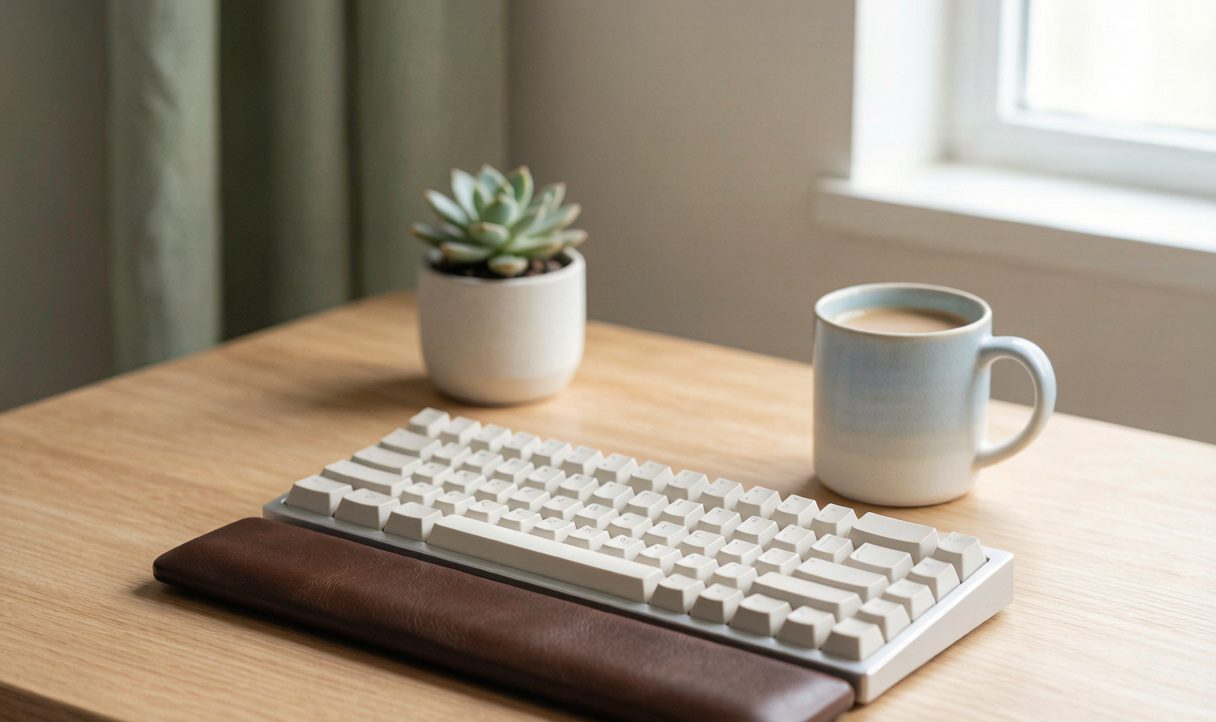
TL;DR — the whole decision in one table
| If you are… | Layout | Switch | Connectivity | Don't overlook |
|---|---|---|---|---|
| Programmer / coder | TKL or 75% | Tactile (or linear) | Bluetooth is fine for multi-device | Remapping (QMK/VIA) |
| Writer / all-day typing | 75% or 65% | Tactile (or silent) | Any | Stable stabilizers + PBT caps |
| Competitive gamer | 65% or TKL | Linear | Wired or 2.4GHz | NKRO, low latency |
| Shared office / on calls | Any | Silent linear or tactile | Any | Quiet switches |
| Minimalist / frequent travel | 60% or 65% | Your call | Wireless | Must be programmable |
Skip mechanical entirely if: you type lightly on a laptop and never notice the keyboard, or you need a number pad daily for spreadsheets and dislike relearning keys. A decent membrane or scissor board will serve you for less money. Going mechanical is a comfort-and-preference upgrade, not a productivity mandate.
Filter 1: Compatibility with your OS and desk
This is the boring filter that quietly ruins purchases. Windows and Mac map keys differently — Option/Command versus Alt/Win, and the function-row behavior. Confirm the board speaks your platform natively; a "Mac-compatible" label that really means "remap it yourself" costs you a weekend. Wireless users should check whether the dongle stores inside the case for travel, and whether multi-device pairing actually switches cleanly. One long-time Redditor's stance is extreme but telling: "I have used a 100% wireless keyboard for 10 years and I'm not sure I could adjust to one that is wired. I like being able to push it out of the way when I need more space." (r/MechanicalKeyboards, via learntocodewith.me). Wireless is a real lifestyle preference, not a line on a spec sheet.
Measure the desk before the cart. A 75% or TKL fits where a full-size does not, and your mouse arm thanks you for the reclaimed space.
Filter 2: Layout — the decision that actually matters
More than switches or RGB, layout decides whether you still like the board in week three. Here is what each size keeps and drops:
| Layout | Approx. keys | Keeps | Drops | Best for |
|---|---|---|---|---|
| Full-size (100%) | 104 | Everything + numpad | — | Data entry, heavy spreadsheets |
| TKL (80%) | 87 | F-row, arrows, nav cluster | Numpad | Coding, general use |
| 75% | ~84 | F-row + arrows (compact) | Numpad, key spacing | Tight desk space |
| 65% | ~68 | Arrows | F-row, nav cluster | Writers, travel |
| 60% | ~61 | Alphas only | Arrows, F-row, nav | Minimalists (layer-dependent) |
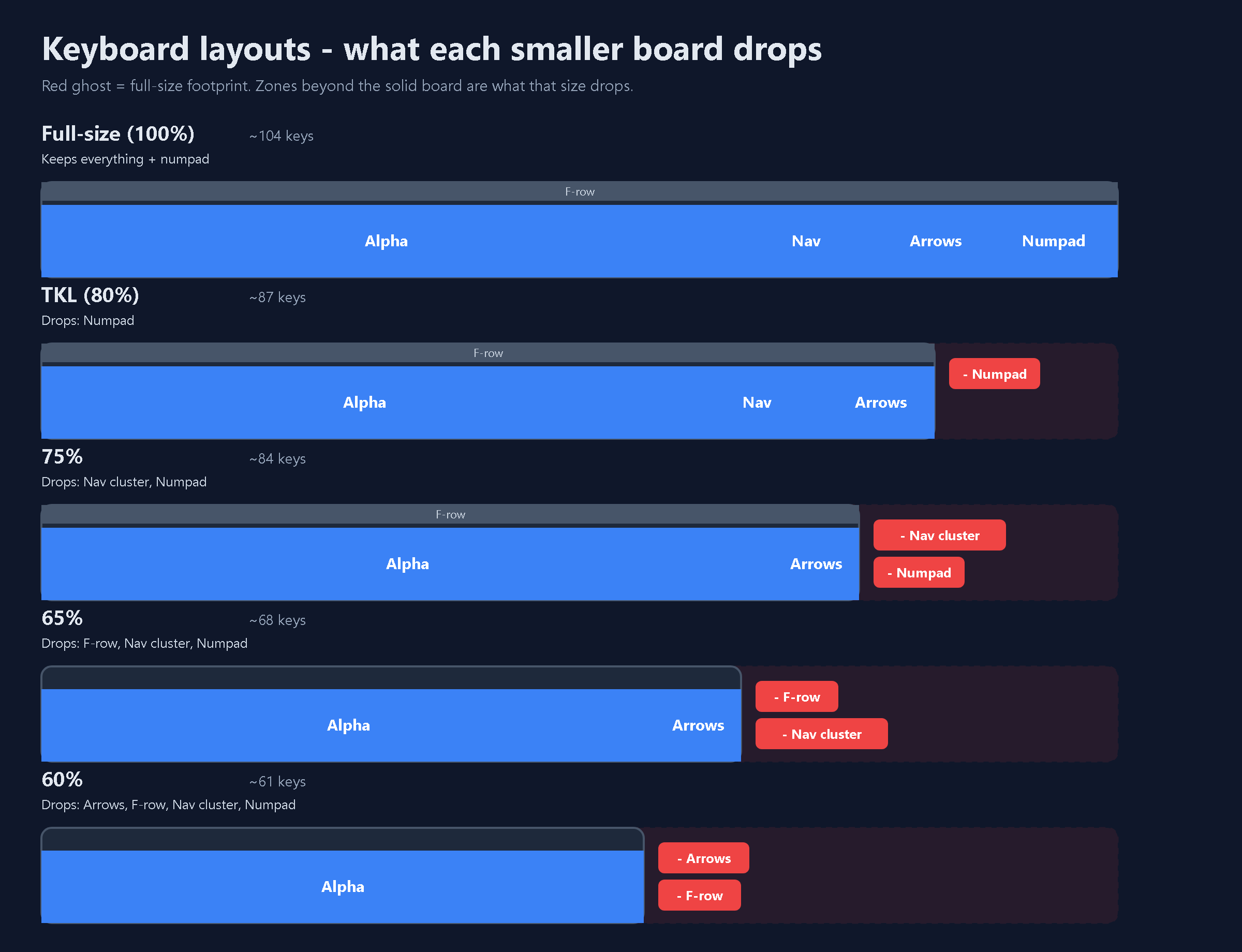
The pattern in community advice is consistent: 75% and TKL are the safe defaults; 65% is a writer's sweet spot that keeps arrows; 60% is only comfortable if you accept function-layer navigation. As one Redditor noted, "as long as it's programmable you can use any size no matter how small" — programmability is what makes the tiny boards livable, not the size itself.
Filter 3: Switches — linear, tactile, clicky
This is the section the original guide skipped, and it is the core of "feel." Three families:
| Type | Feel | Sound | Best for | Watch out |
|---|---|---|---|---|
| Linear | Smooth, no bump | Quiet–moderate | Gaming, fast repeated taps | No feedback → you bottom out |
| Tactile | Bump at actuation | Moderate | Typing, coding | Can sound sharper |
| Clicky | Bump + audible click | Loud | Feedback lovers (alone) | Disruptive on calls |
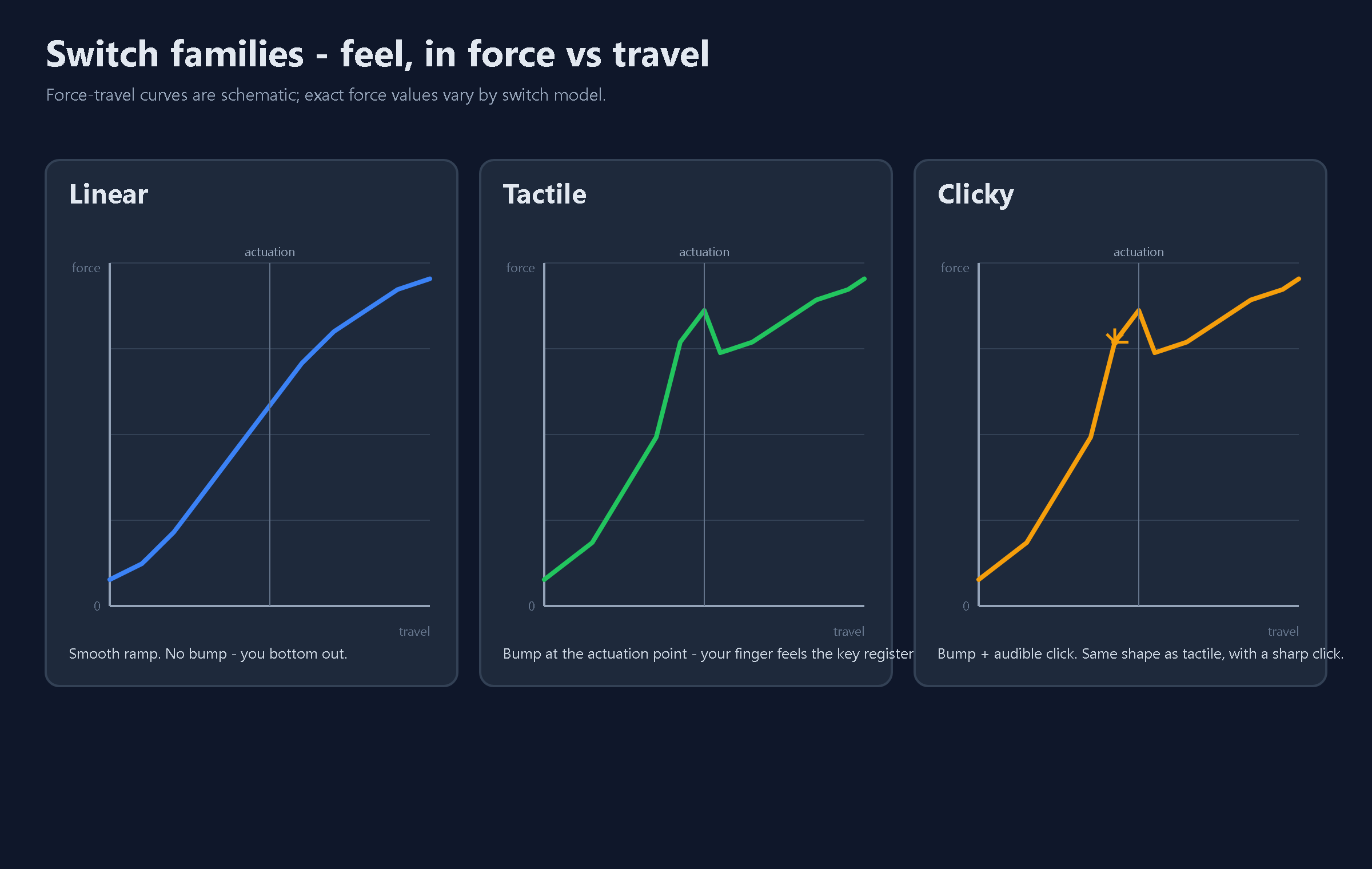
Community preference splits by use: a Reddit-sourced survey cited by ApplianceMind found roughly 60% of gamers prefer linear, 30% tactile, 10% clicky — linears win for speed, tactiles for the bump that tells your finger the key registered. For writers, the tactile bump "lets you develop a lighter, more accurate touch without bottoming out hard all day." Actuation force matters too: most people sit comfortably between 45g (light) and 60g (heavy); lighter suits rapid tapping, heavier cuts accidental presses.
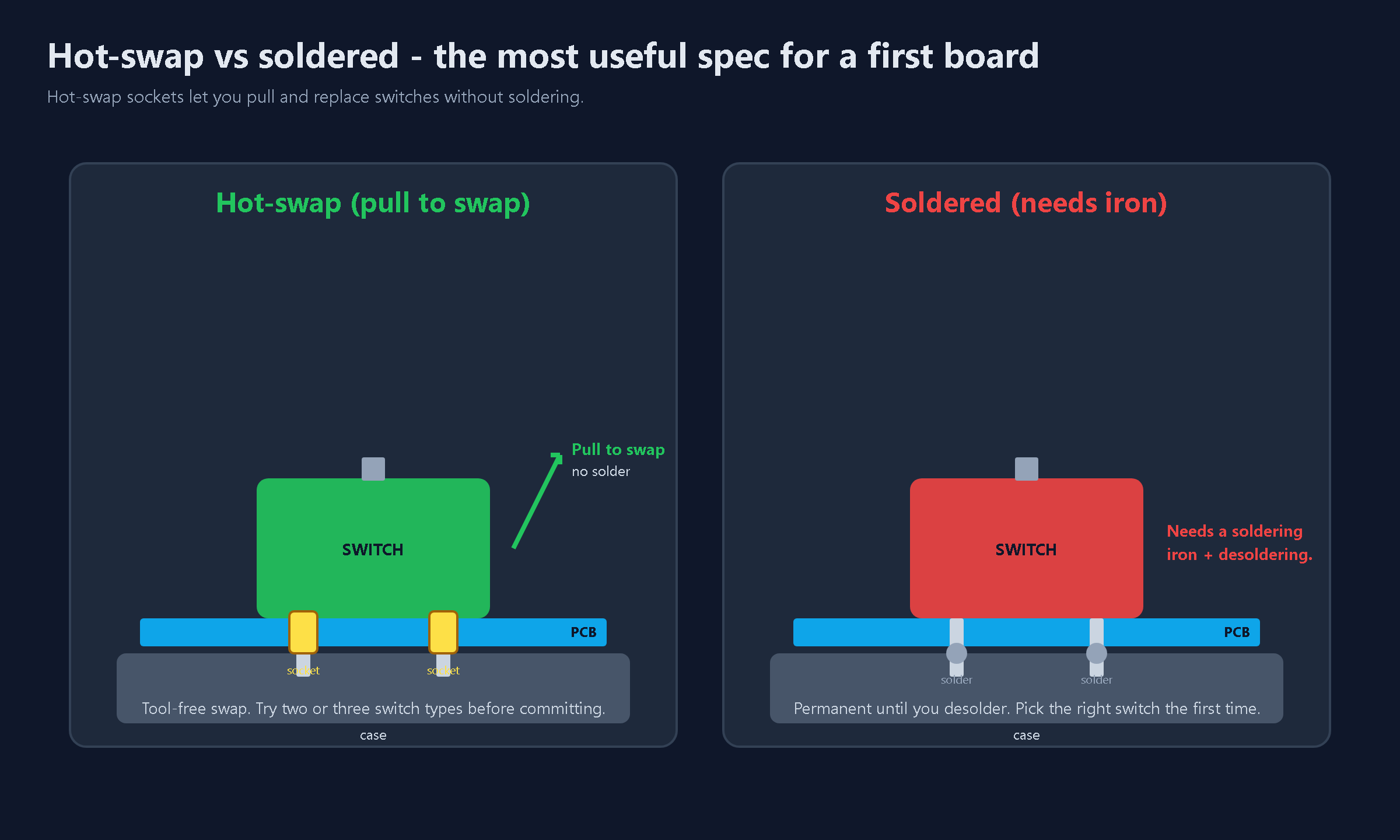
Our editorial standard: if it is your first board, hot-swap is nearly non-negotiable. Hot-swap sockets let you pull and replace switches without soldering, so you can try two or three feels before committing. Community threads treat this as close to mandatory for a first buy.
Filter 4: What the specs actually mean
Marketing leans on words that sound like upgrades. Here is what they mean in use:
- Hot-swap — change switches without soldering (see above). The single most useful spec for a beginner.
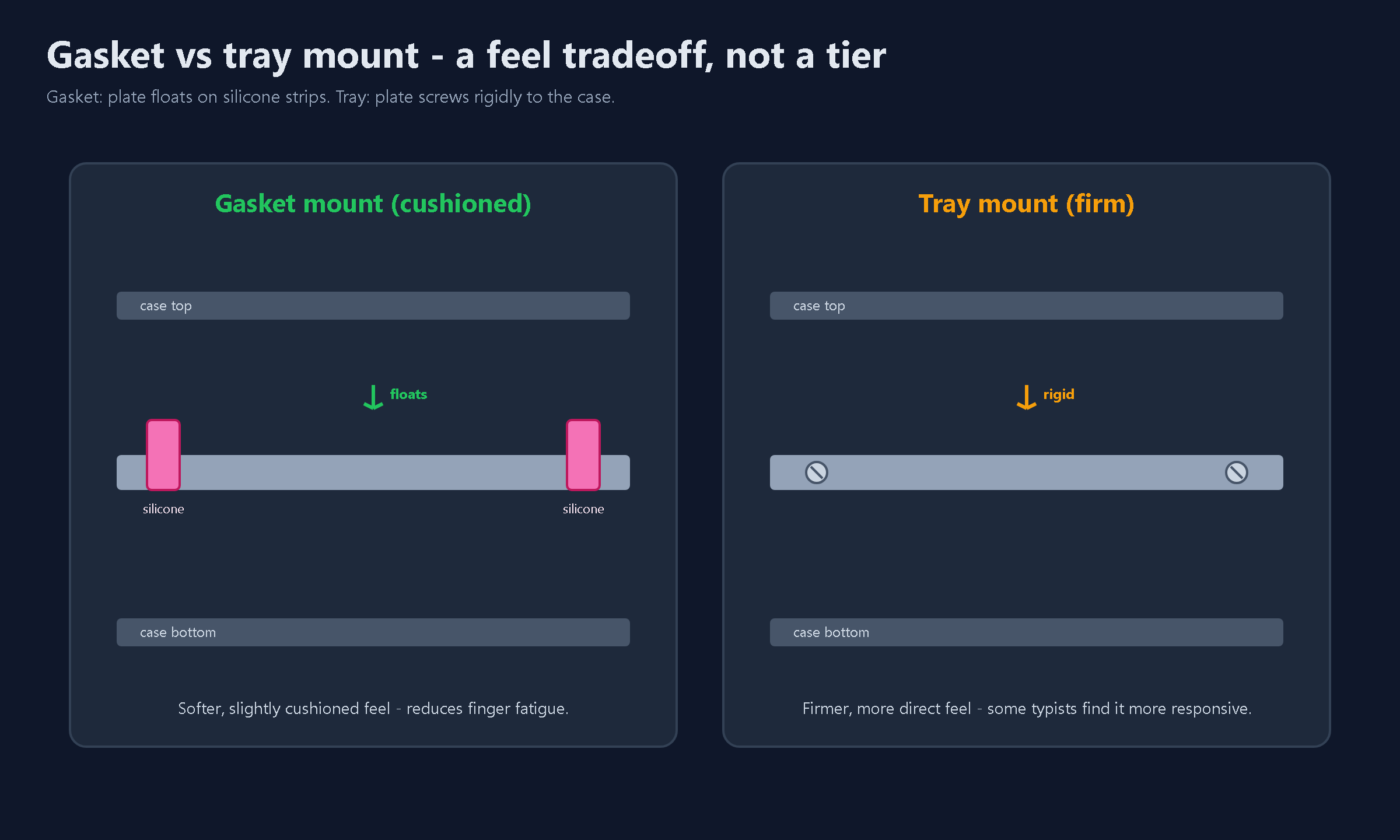
- Gasket mount vs tray mount — a gasket board suspends the plate on silicone instead of screwing it rigidly to the case, giving a softer, slightly cushioned feel that reduces finger fatigue. Tray mount is firmer and more direct. Neither is universally better; fast typists sometimes find gaskets mushy. This is a tradeoff, not a tier.
- Actuation force — how hard you press to register a key (45–60g typical). Lighter means less effort per stroke; heavier means more control.
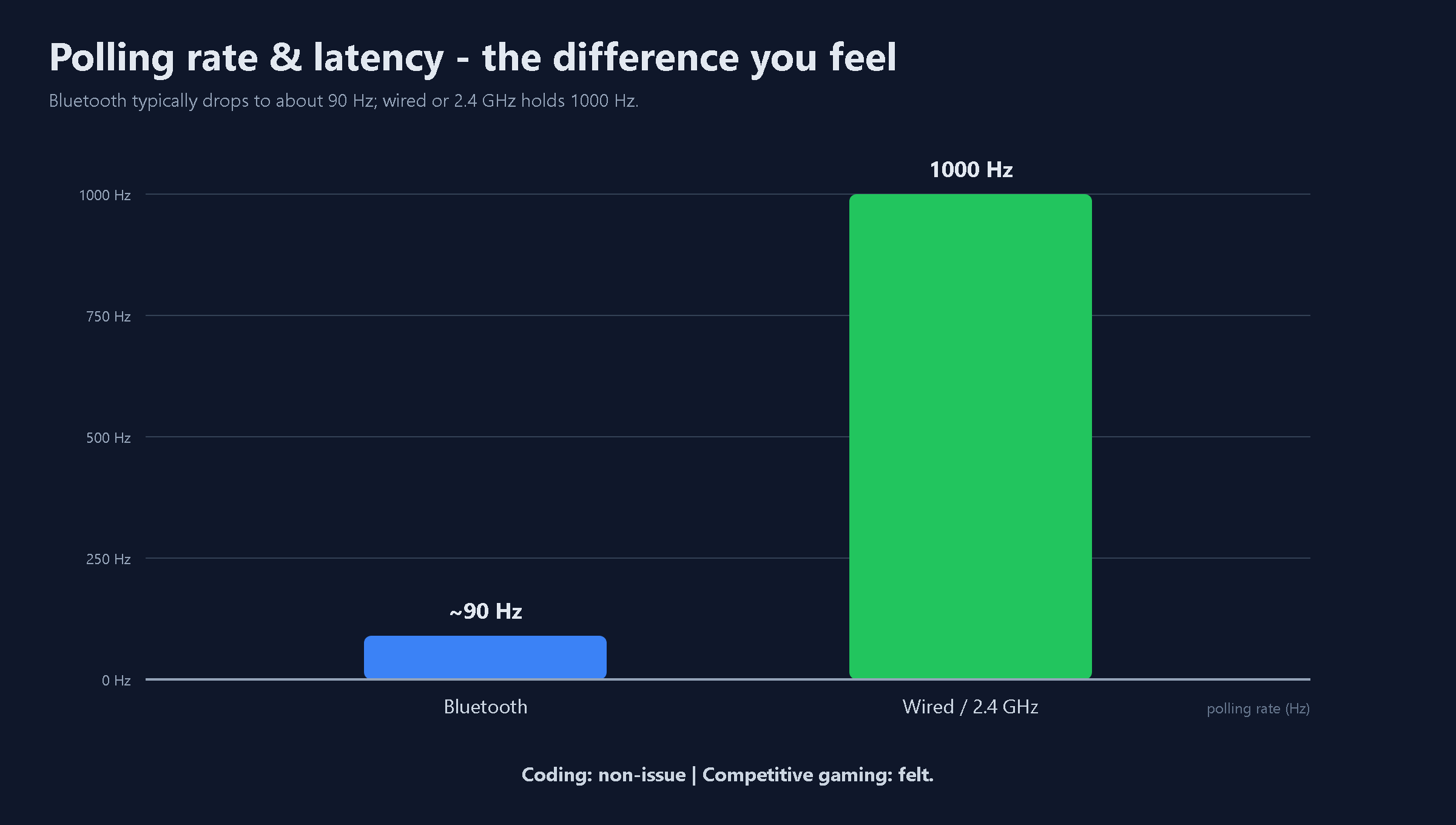
- Polling rate / latency — Bluetooth typically drops to ~90Hz; wired or 2.4GHz holds 1000Hz. For coding it is a non-issue; for competitive gaming it is the difference you feel. One practical gotcha from owner threads: 2.4GHz dongles drop inputs near USB 3.0 ports because the port emits noise in the same band. Move the dongle to a USB 2.0 port or use the included extension dock.
Filter 5: Read the complaints that predict failure
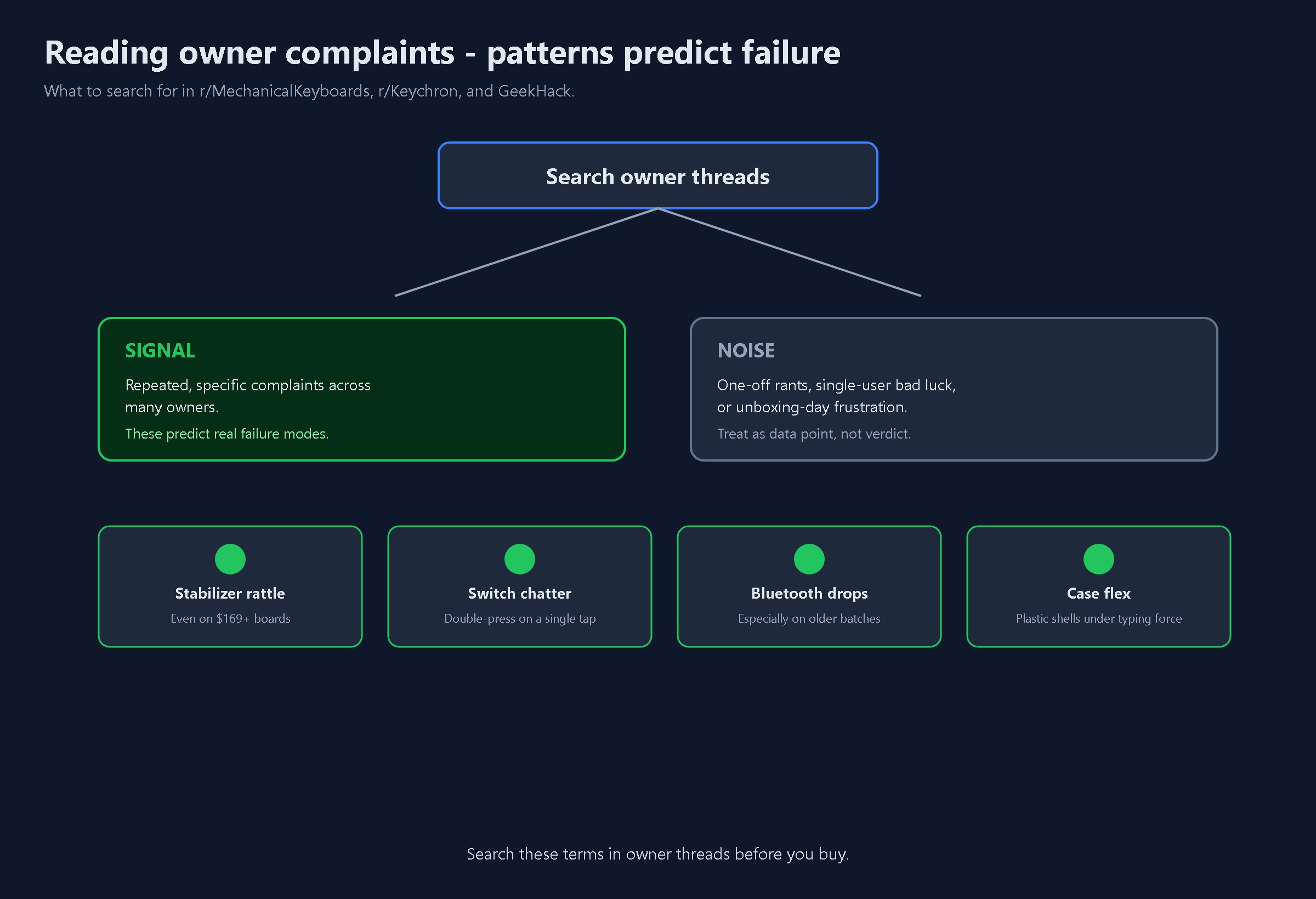
Skip the marketing photos. Search owner threads for repeated, specific complaints — consistent patterns across many owners are the signal; one-off rants are noise. The well-documented example is the "Keychron lottery": a compilation of r/MechanicalKeyboards, r/Keychron, GeekHack, and warranty claims (switchyard.club, 2026) found the same model arriving perfect for some and flawed for others — rattly stabilizers even on the $169+ Q1 Pro, chattering switches that register double-presses, Bluetooth drops on older batches, and case flex on plastic models. None of these surface in launch reviews.
Two more patterns worth knowing before you buy:
- Battery life runs shorter than the spec sheet on wireless boards. The common fix owners cite is disabling RGB and lowering polling — pack a cable for travel regardless.
- Software / configurator bugs. Several boards require a wired USB-C connection (not a charge-only cable) for their web configurator to detect the board. A loose cable is the most common cause of "it won't connect."
Filter 6: Warranty and return window
Keyboards fail in the first year more often than most peripherals — a dead switch row, a stabilizer that won't quiet down, a dongle that drops. A one-year warranty plus a no-questions return window protects you from a board that sounds ideal in reviews but ships wrong. Treat the return window as part of the price.
Decision logic — you are …, so pick …
- You share a room or take calls → silent linear or silent tactile. Skip clicky entirely.
- You code or write all day → TKL or 75% with tactile switches; remapping (QMK/VIA) is the feature that pays off most.
- You game competitively → linear switches, wired or 2.4GHz, NKRO supported.
- You travel or have a tiny desk → 65% or 60%, but only if it is hot-swap and programmable; otherwise the layer learning curve bites.
- It is your first mechanical board → hot-swap, gasket or tray per feel preference, and buy a switch tester before committing to a full set.
Transparency & sources
- Method: This is an editorial methodology guide. We surveyed community discussions (r/MechanicalKeyboards, r/Keychron) via secondary compilations — switchyard.club, guidespot, learntocodewith.me, keebkit, tech-insider — and cross-checked hardware explainers (kbdcompare, keebarchive, redragon). Direct Reddit threads were not independently crawled; every community quote above is attributed to the compiling source, not presented as first-hand testing.
- No product is recommended and no affiliate links are included. Selection criteria are editorial.
- Collection date: 2026-08-20.
- Author: Holive (Editor / Guides).
Keyboard Picker
Build your keyboard in 3 questions
Structure → connection → switch. Answer in order and you've locked in the right board.
Holive
Founder & Editor-in-ChiefHolive is the founder and editor-in-chief of Toolisme. Before starting the site, he was a product manager at two SaaS startups, where he spent countless hours comparing tools for his own teams. He launched Toolisme to spare other teams that same trial and error.